Wednesday, July 22, 2015

AX2012 R3: Mashup - Computed columns + table inheritance in views

Hi Friends,
Dynamics AX has amazing technical offerings. The real benefit of such good features is leveraged when they are combined together to create an amazing output.

In this post, let me walk-through a scenario where we create a computed column whose logic is based on a bunch of inherited tables. A basic understanding of Table inheritance, Queries, Joins, Views, Computed columns and Product attributes will make this post easy to understand.

In standard AX we can create/define product attributes applicable on a product. Technically the attributes data is stored in a set of tables which use table inheritance. EcoResValue is the parent table of these tables as shown below:


All the attribute values of string types are stored in EcoResTextValue,  Integer values are stored in EcoResIntValue table and so on. Each child table stores it's relevant data in there relevant fields.


Goal : Create a view with a computed column to show the attribute values of different data types in a single text column.


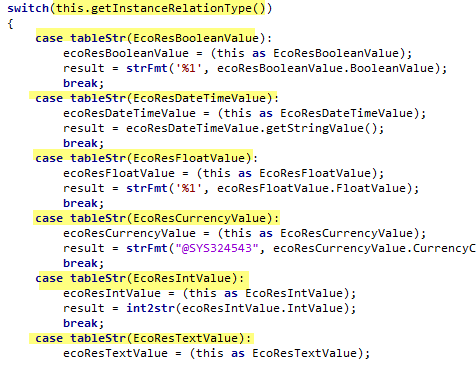
There is a standard AX display method [\Data Dictionary\Tables\EcoResValue\Methods\getValueAsText()] which fetches the value from the respective child table. We will actually be simulating the same in our computed column code. In this method, switch is on the basis of InstanceRelationType and case on tableId. Value is returned from that respective table:


To do this we need to first model a query having all the above dataSources linked to parent table. So the root table will be EcoResValue and then all the other tables with the link type of outer join.


Once the query is created let's create a new view and add the above query as data-source.


Next we create a new method for the computed column field. In that we have to:
  • Define the switch based on field Instance relation type from EcoResValue
  • Cases will be on the tableID of each child table
  • Return the value from the respective field of the child table.
    • In case there are more then one field storing the values in the child table, then we concatenate those fields.
    • We need to typecast the field values to string values
    • Where units are used, we need to concatenate the unit text from the respective table.
In one of my previous post, I showed how to write Switch, Add and Cast methods using a SysComputedColumn class. It can be referred here.

Each value in the map is inserted for a particular tableID. Sample code to return that value from it's corresponding table is shown below:
We define the switch on InstanceRelationType field as shown below:


When all the switch cases are combined we get the below method:


Now lets add a computed string column field in the view and check out the computed values.

EcoResIntValue record value:


EcoResFloatValue record value :


EcoResDateTimeValue  record value: (Here I have not applied any time zone offset. Hence the time is different.)


EcoResCurrencyValue record value :


EcoResBooleanValue record:


We see that we have retrieved values from various tables of different data types, all coming together, in one column using the computed column concept. Now we can use this view throughout the system. Some possibilities:
  • Effective use in reports. No need to write heavy joins in data provider class.
  • Can be used to set-up document types.
  • Can be used as a query and then extended outside AX using Dynamics AX Office AddIns.
  • Can be used as display methods on forms where we want to show attribute values.
There are many more possible solutions where such views can be extended and can deliver awesomeness to customers using Dynamics AX. 

Thursday, July 16, 2015

AX2012 R3 : Use of SysComputedColumns to build smart AX views

Hi Friends,
View is a powerful feature in AX which can benefit development and business modelling. Once created, you can reuse it without need for writing/modelling complex queries and joins again and again. Adding to it's beauty is the ability to create computed columns using X++ code. Now that's a deadly combo!!

Code for computed column depicts a SQL view query definition. Hence the way of writing X++ code inside a computed column method is bit different. To help us tackle this challenge and model the code effectively, Microsoft provides us with an out of the box class: SysComputedColumn. In this post, lets take a look at some of the basic operations which we can perform using this class.


Thumb rule is, the methods written for computed column computation should be declared as static and in order to access a field we need to use SysComputedColumn::returnField() method.

For example if we have to access the value of field CustGroup from CustGroup table, then a normal X++ code is custGroup.custGroup. But inside a computed column method we need to use the SysComputedColumn::returnField() method to access this field. This is shown later in this post.

Below is the returnField method definition. Note, it takes three parameters:


So lets play with CustGroup table and create a simple view out of it:
  • Right click on AOT >> DataDictionary >> Views and create a new view
  • Add datasource "CustGroup"
  • Add 2 fields, CustGroup and PaymTermId


Browse the view just to make sure the values coming in the table browser.


Now let's create our first simple string computed column and return the field custGroup,just  to get a feel.

Create a new method in the view as shown below:


Now we add a new string computed column field in the view and link it to this method

To do this, Right click on the fields >> New >> String computed column


In the properties for this new field >> View method >> Select the method we created above
We are all set to see the glimpse of our first and very simple computed column which returns the custGroup.  


Now we will change the textValue method to explore other methods available in SyscomputedColumn class:

ADD : This method is used to add 2 string values. It accepts two string parameters. Modify the method to add the CustGroup and PaymtermId fields as below:


Let's open the view and check the way the strings have been added below:


IF: This method accepts three parameters as shown below and returns the equivalent SQL view design script


Let's create a condition: if the CustGroup is 10 then return the value of CustGroup , else return the value as 0. The modified method looks as below:


Lets open the view, notice that the value is shown only in the record having custGroup as "10" as per the condition:


SWITCH: Below is the syntax of the function. It accepts a Case expression , Map (for storing the values) and the default expression


Lets modify our method to Switch on the basis of CustGroup and populate a map based on the case condition.


Below is the code template:
public static server str textValue()
{
    tableName       viewName = tableStr(CustGroupView);
    Map             valueMap = new Map(Types::String , Types::String);
    valueMap.insert("10", SysComputedColumn::returnLiteral('Value 10'));
    valueMap.insert("20", SysComputedColumn::returnLiteral('Value 20'));
    valueMap.insert("30", SysComputedColumn::returnLiteral('Value 30'));
 
    return SysComputedColumn::switch(
        SysComputedColumn::returnField(viewName, identifierStr(CustGroup_1) , fieldStr(CustGroup,CustGroup)),
        valueMap,
        SysComputedColumn::returnLiteral('BadCase')
        );
}

CAST : This method is used for conversion between data types. Below is the syntax of the method:

 
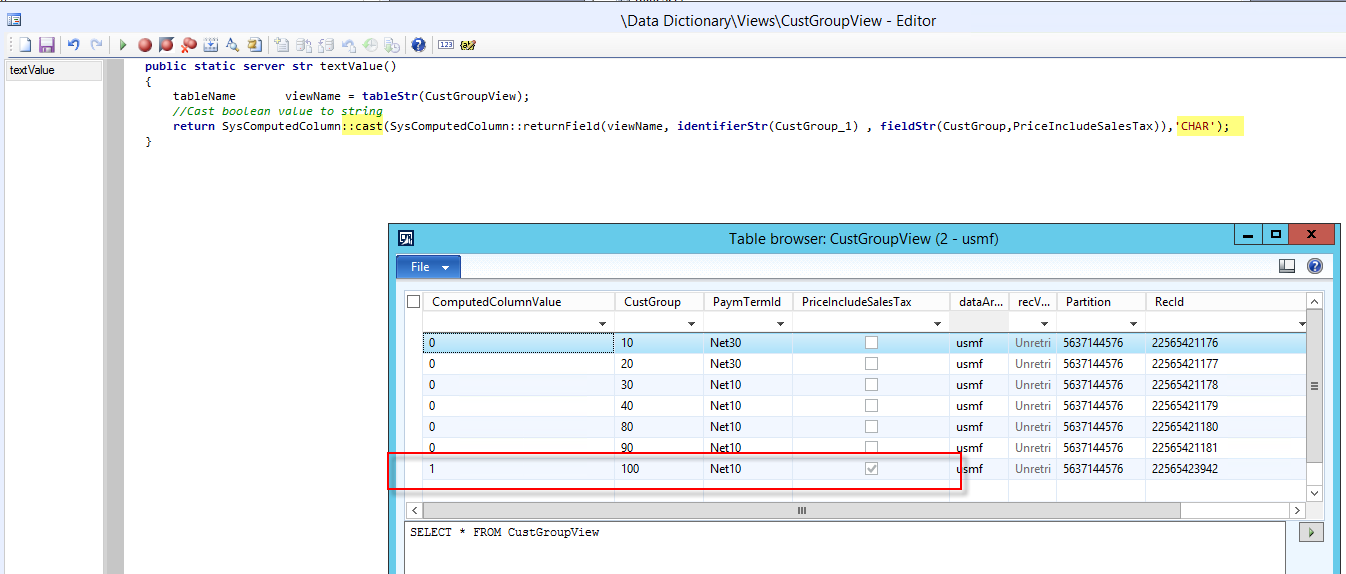
Let's modify the method to return the Boolean value of the field PriceIncludeSalesTax as a string with the help of cast method. The code and the result set is shown below


This is just a sneak peek into the methods available in SysComputedClass.There are more methods in this class using which you can make powerful SQL views using X++ and deliver amazing customer experiences.

More interesting references on the using SysComputedColumns :
1. MSDN
2. Joris de Gruyter's blog
3. Martin Drab's Blog
4. Krishna Reddy's Blog


Wednesday, April 8, 2015

AX2012 : Troubleshooting SSRS error "The socket connection has been disposed. Object name:'System.ServiceModel.Channels.SocketConnection'"

Hi Friends,
Recently we faced issue at one client using AX2012 FP CU4 , on running the below standard AX reports, we had no customizations in these reports and other reports in systems were running fine:
·        General Ledger > Reports >Project > Transaction >Ledger updates -Consumption report
·        General Ledger > Reports >Project > Transaction >Ledger updates - on-account transactions.


The reports were running fine when executing for shorter date ranges so we were having doubt that the report rendering was getting timed out due to large volume of data.

On searching in LCS, my doubt was confirmed as  I found resolution for the same error message, for customer ageing report, below is link:
https://fix.lcs.dynamics.com/Issue/Solution?bugId=3129125&qc=6948a944b173c583fdcf4eb33265edcd

We have to increase the default SSRS timeout configuration settings on the report server, server configuration and business connector configuration on the SSRS server. The below link from Dynamics AX BI team which has more details on how to do it:
http://blogs.msdn.com/b/dynamicsaxbi/archive/2013/02/14/how-to-addressing-ssrs-session-timeouts.aspx

If you are facing the same error then worth trying this out.  Have a great day.

Friday, February 20, 2015

AX2012 R3: Technical overview of developing new RF processes

Hi Friends,
AX 2012 R3 comes with out of the box warehouse mobile device portal which can be accessed via mobile devices. 
If you are working on a development task to create new/extend existing RF screens then here are some basic design principles which should be kept in mind throughout the development process:

1. RF processes are small and clear tasks. So be very clear about what process needs to be build. Discuss and brainstorm with consultant to make the process crisp, clear and user friendly.

2. There should be a clear division of  the complete process into steps. This is important not only from understanding point of view but also in order to do the development of the classes as the framework classes  require you to set the process stage every time a scan is done.

3. Create a  process flow diagram of the process. This helps to visualize the process more clearly.

Moving on it is very important to understand how the technical architecture for this framework works. Here are some key points:

  • The class controlling the RF screens behaviour is WHSWorkExecuteDisplay. Every RF process class extends this class. So if you are on the way to create your custom screens then you know the first point. Your new class needs to extend WHSWorkExecuteDisplay class.

  • This is an abstract class, note that there are variable which hold the step and pass information, these play very important role in developing the process.


  • Another important class in this framework is WhsRFPassthrough. It maintains the complete information of values stored in all the process variables at each step.

  • Apart from extending this class there are 2 more enums which you need to modify to plug in your new process:
    • WHSWorkExecuteMode
    • WHSWorkActivity.


  • There are few methods in WHSWorkExecuteDisplay class which are of quite importance as you can model you process just by overriding these methods and understanding how they work.
  • displayForm() is an abstract method in this class. When you override it, the below things are done:
    • You build the container
    • Set the process step inside this method
Refer to any standard AX class where this method is overridden to get an idea of how to model this function.
      

  • It is based on containers and maps. 
  • Map named pass in class stores all the control values. 
  • Values/selections are all stored and then processed at run time. 
  • There are no form designs, all the magic is happening inside the classes using X++ code.

For example the below code from WhsWorkExecuteDisplayProdStart class gives an idea of how to build this method:


There is a great article written by Alex Anikiev which can be found here to show how we can leverage the existing architecture to create new custom RF screens. The above basic idea of how the classes work should make the overall understanding more smooth.

Let's also take a look at the setup required to use the RF screens. The setup is very simple:
1. Setup Mobile device menu item --> All menu items on RF menu need to be defined on this form. It can be accessed from Warehouse management -> Setup -> Mobile device -> Mobile device menu items


2. Setup mobile device menu : On this form you can set up the different menus that will be displayed on the mobile device. This form can be accessed from Warehouse Management > Setup > Mobile Device > Mobile Device Menu and is very straight forward to configure.


3. Setup user worker: We need to set up a user ID for workers who will be using the mobile device. This can be done from Warehouse Management > Setup >Work User > Worker screen. You will need to define the setup for the worker attached to your AX user. Here you can select the default warehouse and the default main menu for the user.


You are done with the required setup and can start using the RF screens and explore the possibilities.

Wednesday, February 4, 2015

AX2012 R3 : Troubleshooting customized SSRS reports deployment error after AX2012 R3 upgrade

Hi Friends,
After upgrading an AX2012 R2 environment to AX2012 R3, I was getting the below error on deploying the customized reports. Although, I verified that the reporting services extensions were installed, report server was configured properly and I was able to deploy the standard reports without any errors, I was still getting the below error on deploying the customized reports:


In order to fix this error:

1. Export the SSRS report object as a XPO.

2. Open the XPO in notepad.

3. Search for text "Version" and replace version values from 6.2.0.0 to 6.3.0.0 towards the end of the file, shown below:


4. Save the changes in XPO and import it.

5. Deploy the report.


So if there are couple of reports, then export all of them together in in XPO and replace the text 6.2.0.0 to 6.3.0.0 and then import all the reports in one go. Of course, no need to mention that it's always worth taking backups before doing such tasks ;).


Friday, November 21, 2014

AX2012: Troubleshooting "ERROR: Cannot find index PK_ModelSecurityPermissionCache_RECID"

Hi Friends,
Recently while importing model store in AX2012 CU4 environment, I got the below error:


To resolve this, run the axutil schema command.


After executing the axutil schema command, the model store import worked fine. If you are also facing such issue then worth trying this. It reinitializes the default model store.

More details regarding this can be found at the below MSDN link:
http://technet.microsoft.com/en-us/library/hh433540.aspx